 LaptopVR
Turn your iPhone into a VR headset
with five monitors for your Mac.
Your Mac streams to the iPhone you already have. All you add is a headset that holds it.

Scroll to look around
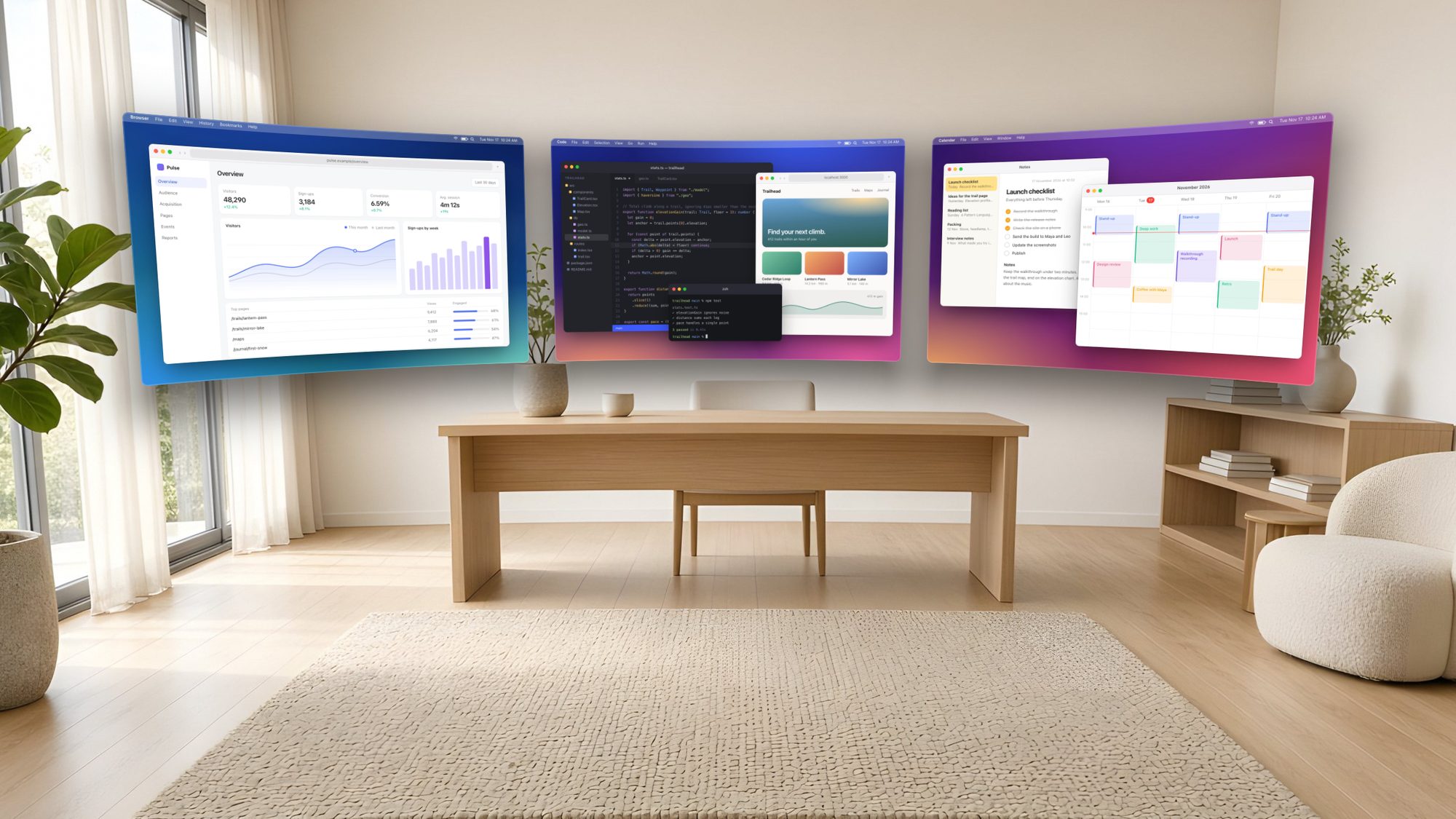
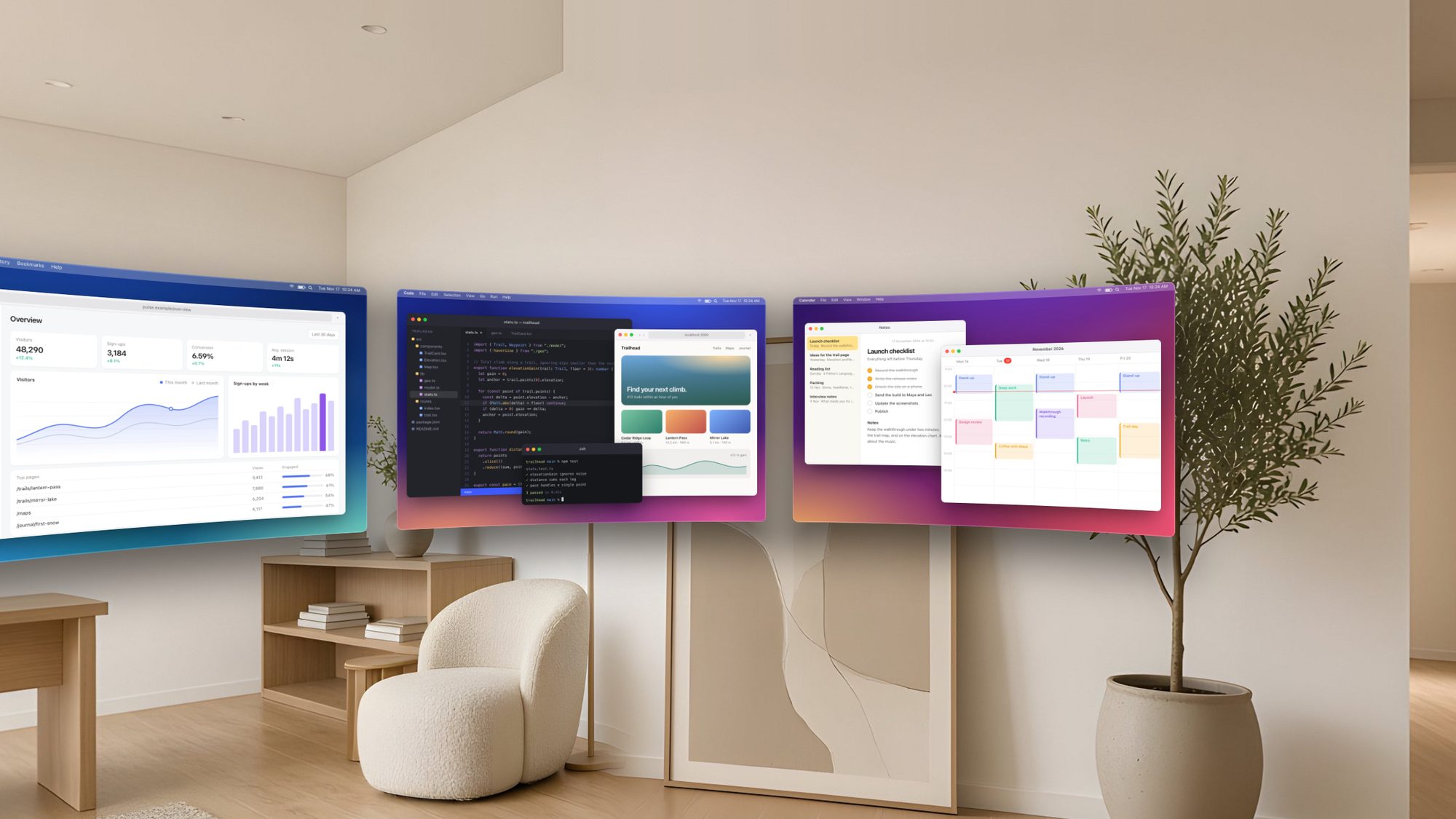
Screens that stay put.
Turn your head and every display holds its place, like real monitors on a real desk.
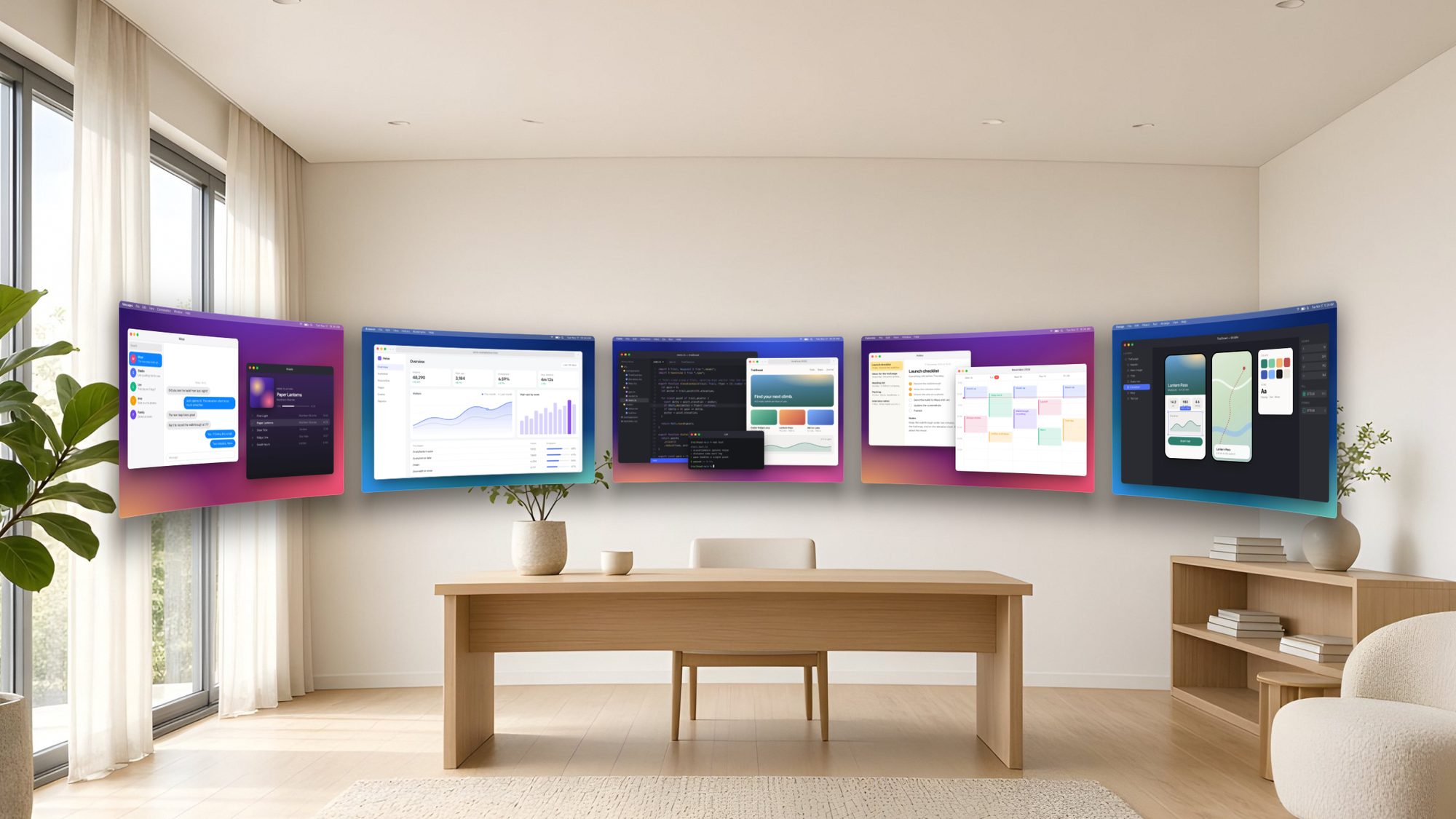
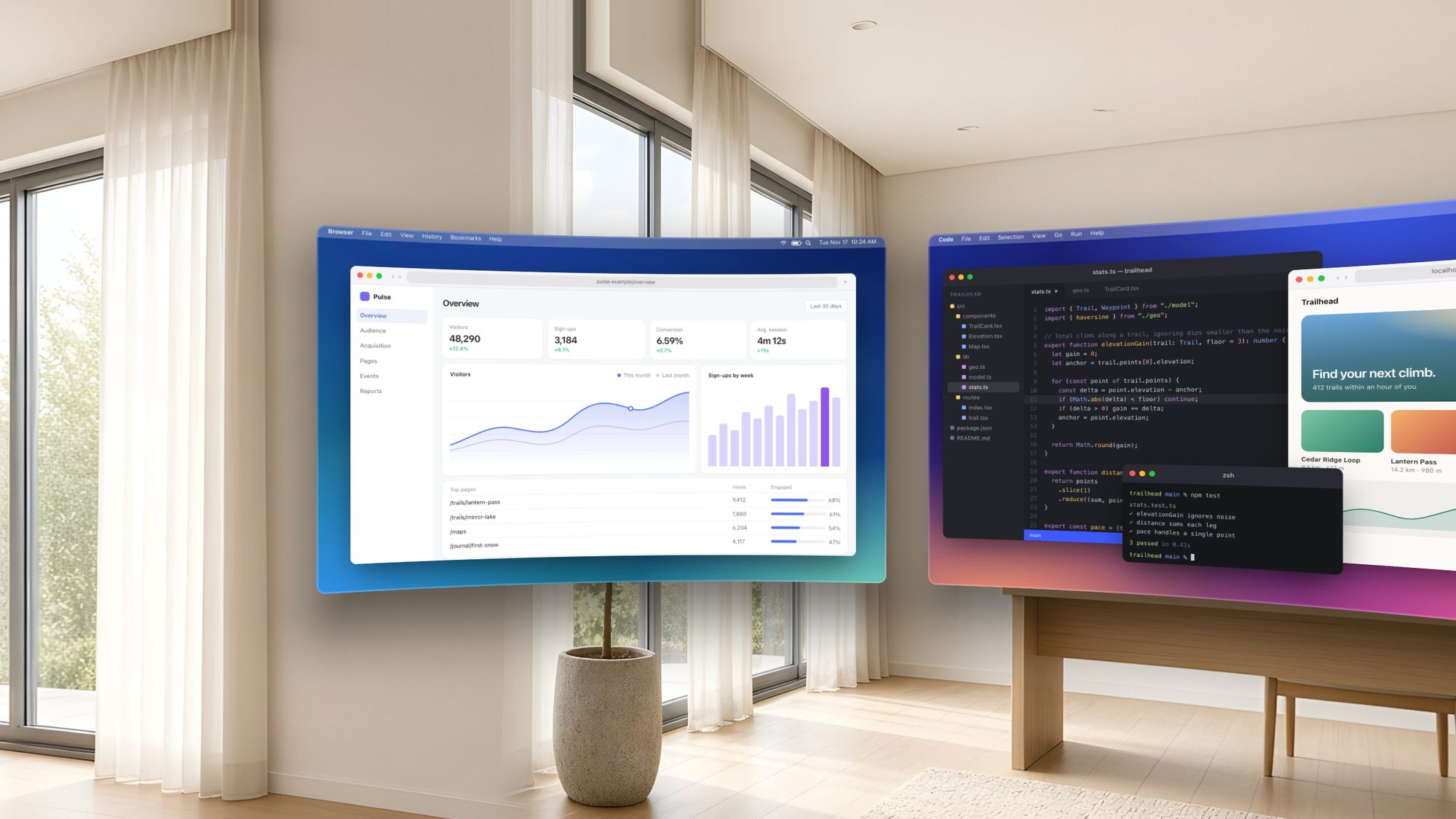
One Mac. Up to five displays.
Add as many as four extra monitors. macOS treats each one as real, so windows drag across just as they always have.
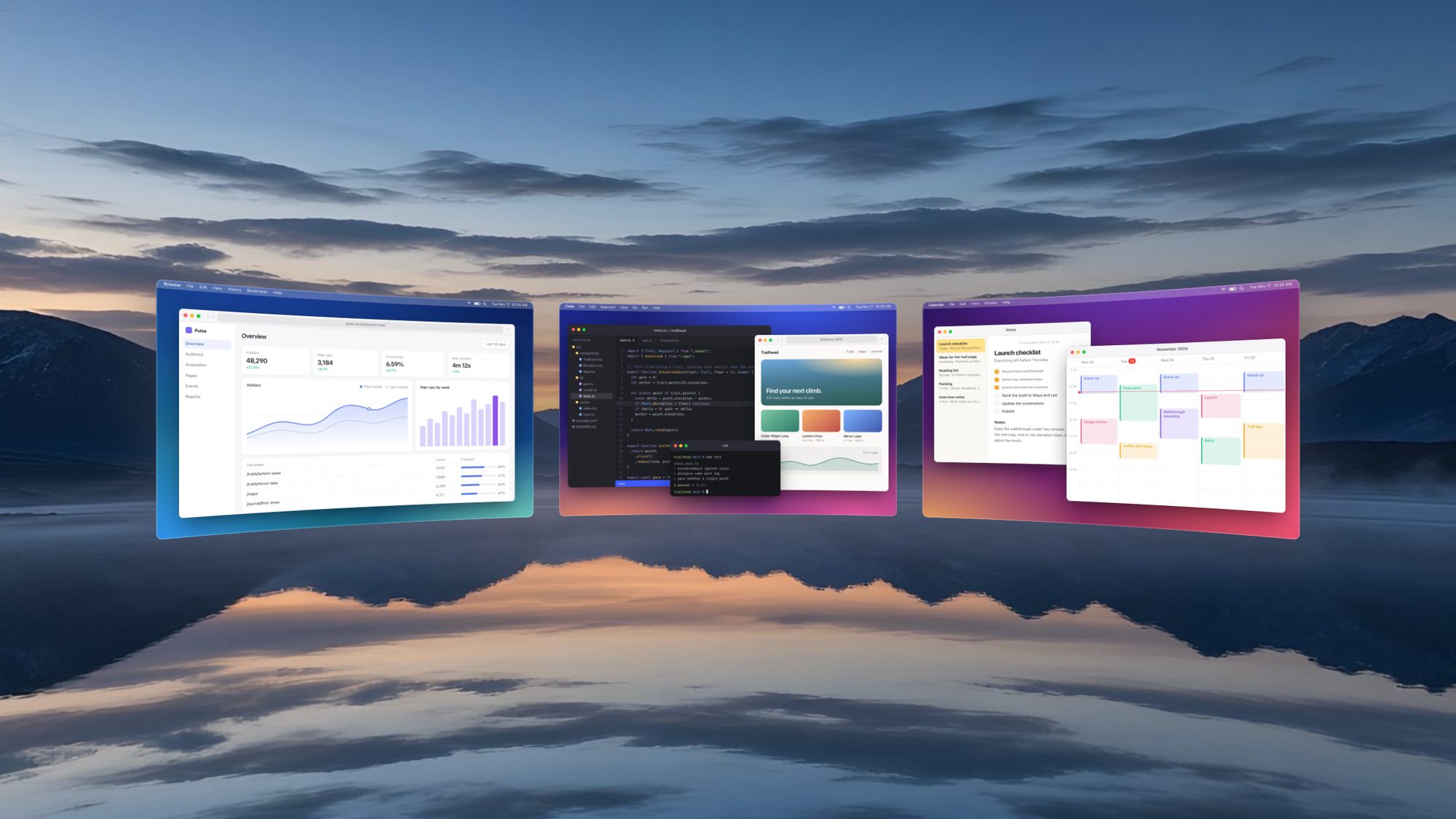
Choose your surroundings.
Keep your own room in view through the iPhone’s camera, or trade it for somewhere else.
- Passthrough
- Image
- Gradient
- Color
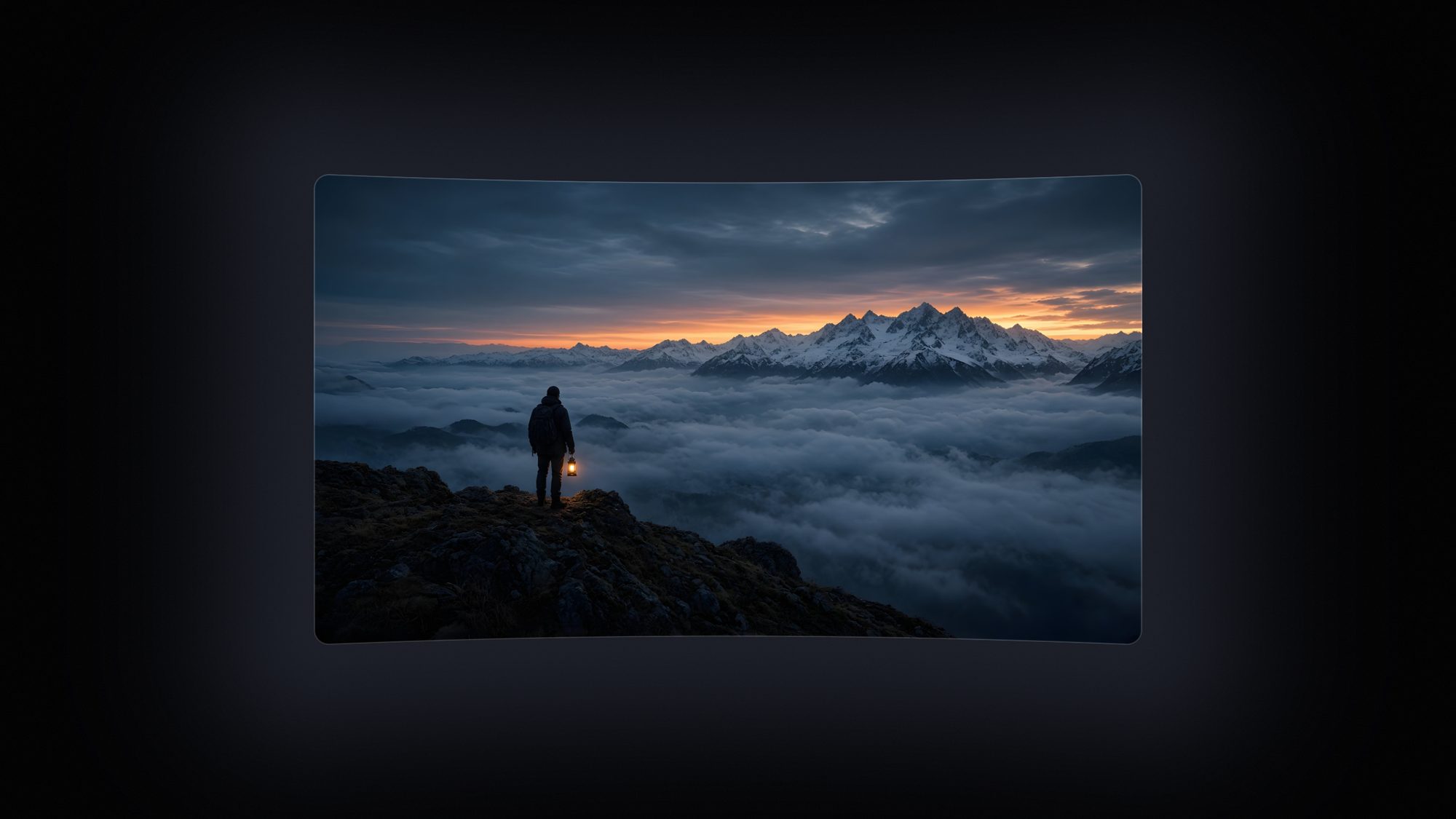
The best seat in the house.
Cinema turns the lights down and puts one enormous screen in front of you.
Or bring them with you.
In Follow, your screens come along when you look away, so your work is always in view.
Built to disappear.
The best compliment for a display is that you stop noticing it. Everything here is in service of that.
Low latency
Fast enough to forget it’s streaming.
Your Mac’s picture is captured, compressed in hardware, and drawn on your iPhone at up to 120 frames per second. The pointer moves when your hand does.
per second
Connection
Plug in. Or don’t.
LaptopVR uses the cable whenever your iPhone is plugged in, and Wi-Fi when it isn’t.
Privacy screen
For your eyes only.
Cover your Mac’s own display, or turn its backlight off, while you work in the headset.
Recording and screenshots
Show them what you see.
Save what you see as an ordinary video or picture on your Mac: every screen, your surroundings, and wherever you happened to be looking.
 0:42
Shortcuts
Everything within reach.
You can’t see your keyboard, so the controls come to it. Hold Control, Option, and Command, then press one key.
- SpaceRecenter
- =Zoom in
- MAnchored or Follow
- PPassthrough
- CCinema
- NAdd a monitor
Headset setup
Tuned to your lenses.
Scan the code printed on your headset, or pick it from a list, and the picture is shaped to match.
Ready in a minute.
No accounts, no pairing codes, nothing to configure. Your Mac does the work and your iPhone becomes the display.
Your iPhone draws the scene once for each eye. The lenses in the headset turn the two pictures into one that surrounds you.
- 1
Install both apps.
LaptopVR for Mac lives in your menu bar. LaptopVR for iPhone comes from the App Store.
- 2
Connect.
Plug your iPhone into your Mac, or put them on the same Wi-Fi network. They find each other.
- 3
Put it on.
Tap Enter Headset, slip your iPhone into the headset, and look around.
What you need.
Chances are you already own most of it.
- Mac
- Any Mac with macOS 26 or later.
- iPhone
- Any iPhone with iOS 26 or later.
- Headset
- A VR headset for iPhone: the kind with two lenses that your phone slips into. Most work straight away.
- Connection
- A cable between the two, or a Wi-Fi network they share.

Give your Mac some room.
Get LaptopVR for your iPhone and your Mac. The two work as a pair.